I seriously cannot get this song - Jubel - by Kilgande out of my head. Like for monthssss. It's such a "good weather" jam. Lovin' it.
Tuesday, April 7, 2015
Currently April
Spending tonight linking up with Farley over at Oh Boy 4th Grade for "currently" in April.
I seriously cannot get this song - Jubel - by Kilgande out of my head. Like for monthssss. It's such a "good weather" jam. Lovin' it.
Thursday, April 2, 2015
Unofficial Easter Sale
Hi there! Ready for spring break? 'Cause I am. :o) Mostly because I can start eating dessert in large quantities on Sunday. Hooray!
Speaking of Sunday - I am teaming up with Glitter Meets Glue for her annual unofficial Easter sale on TPT. The sale takes place this Sunday and it is good for 20% off my entire store!
Some of the new things I have going on over there are my Spring Bundle for math and literacy, QR Sight Word Scramble, which the kiddos LOVE, and an UPDATED sight word pages pack!
If you find nothing you like, let me know! I am always looking for new ideas and ways I can expand my creations. Thanks for stopping by - hope you have a wonderful weekend!
Speaking of Sunday - I am teaming up with Glitter Meets Glue for her annual unofficial Easter sale on TPT. The sale takes place this Sunday and it is good for 20% off my entire store!
Some of the new things I have going on over there are my Spring Bundle for math and literacy, QR Sight Word Scramble, which the kiddos LOVE, and an UPDATED sight word pages pack!
If you find nothing you like, let me know! I am always looking for new ideas and ways I can expand my creations. Thanks for stopping by - hope you have a wonderful weekend!
Tuesday, March 31, 2015
iPad Platforms for K
Last week, I posted on organizing iPads for kindergarten to make them most useful day to day. One of those things is the Showbie app, which I use for my classroom platform. I could NOT be truly effective using iPads without it!
What is it?
Showbie is an app that allows you to upload any PDF, picture, video, or voice memo and send to all of your students. It is a way to send home homework, notes, help students self-monitor improvement, use for center responses, in guided reading, etc.
Why use it?
It streamlines the work you are giving students, cuts down on issues at the copier, reduces paper waste, and provides for both differentiation and immediate student feedback. The parents also have constant access to student progress and can message you questions, concerns, etc.
Disclaimer: I do understand the need for developing fine motor skills, so we are definitely not completely paper free in my class. The kids also use stylus's to help develop fine motor.
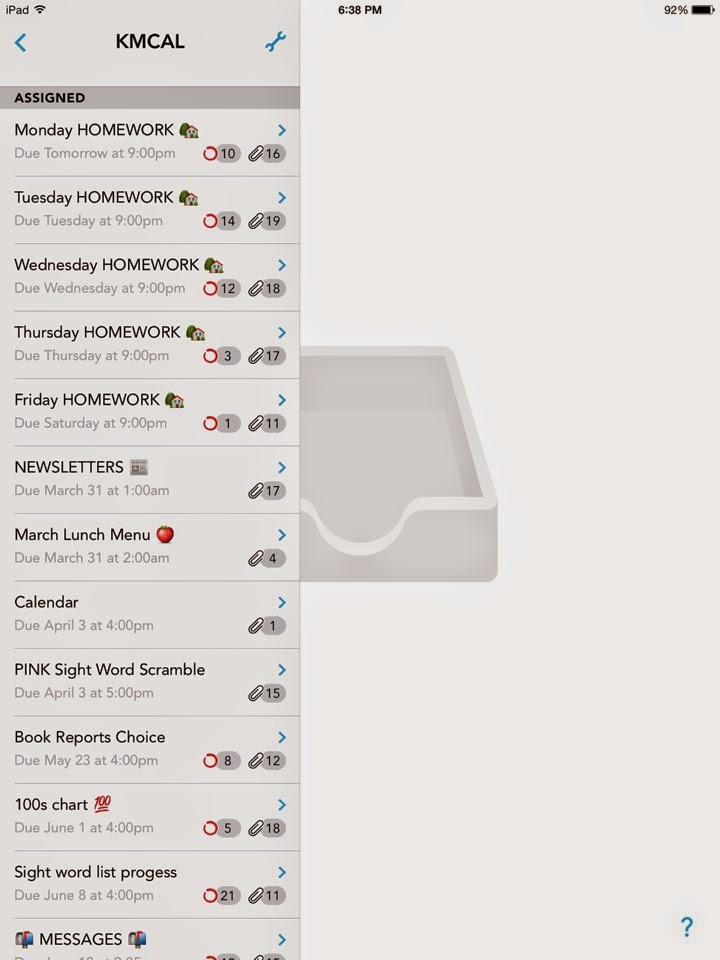
Here is what my Showbie looks like from the teacher perspective.
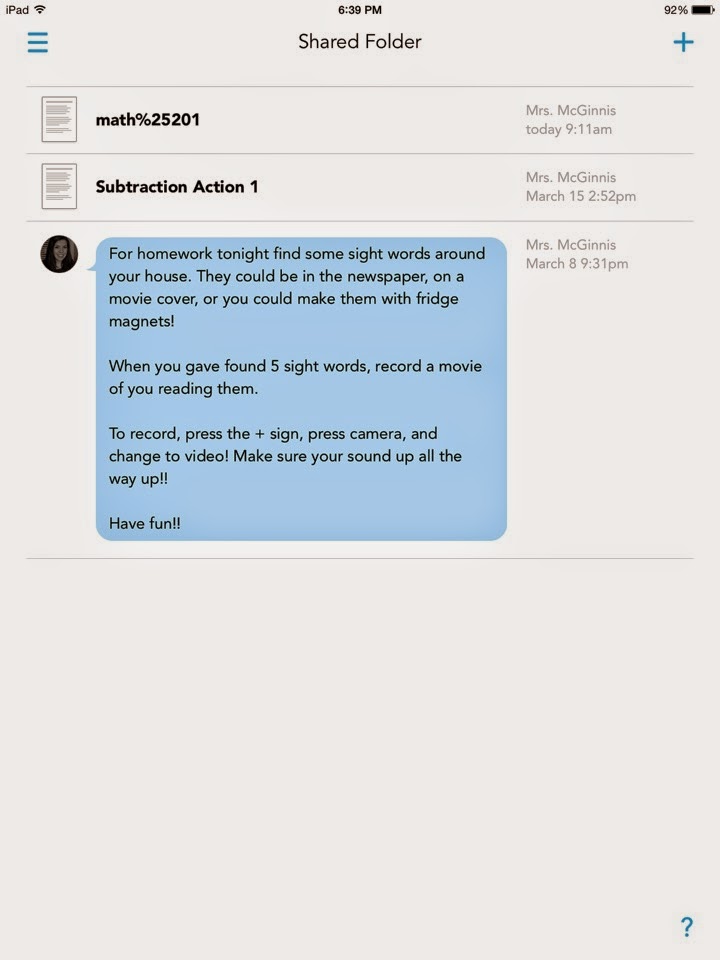
If you click on an assignment such as "Monday Homework" it brings you here.

Now you can see my last three Monday homework assignments. It can be a document or an uploaded video of you reading. This is what the kids see on their iPads. They can edit each document, send me a note, upload a video, etc. When they make edits it goes directly to me and no one sees their edits. When I edit the document though, everyone gets it.
Think of it this way - You are virtually passing out papers, and getting them back to grade. Then editing them and handing them back to the students. But, it is SO FAST this way!
Ok, so how do I see the assignments? Just click on "Shared Folder" and then the little people sign in the upper right. Then you can see a list of the kiddos and who has completed the assignment, Just click on the name to grade. After you press "done" they get the edit.
Want to change an assignment? Just click the tool sign.
Ok here's where it gets fun - uploading documents. Click this little plus sign in the corner. Here is where you add pictures, comments, voice notes, etc. If you want to add a PDF or other file we have to go through Google Drive.
You can actually upload PDFs or other documents two ways, but this is the Google Drive way. If you don't already have Google Drive on your iPad, download the app - l.i.f.e. saver.
Open Google Drive > open your document > click "i" in corner
Click "open in."
Click "open in" again.
Click "Open in Showbie"
Here it will tell you what folder you are putting the document into. If it is not the right folder, you can exit out, open the folder in your Showbie app, and repeat the process.
Once you click "Add File" it is in and ready to go!
What is really nice, is that you can differentiate work for each student. You can click on a student and upload things only for them, which is fabulous.
Next time, I can go through that process and I will also do a tutorial on uploading from your computer. Uploading files can be a little confusing at first, but once you get the hang of it, this process makes like so much easier! Plus, you cut down on copy time, paper usage, and copier problems - hip hooray!
What is it?
Showbie is an app that allows you to upload any PDF, picture, video, or voice memo and send to all of your students. It is a way to send home homework, notes, help students self-monitor improvement, use for center responses, in guided reading, etc.
Why use it?
It streamlines the work you are giving students, cuts down on issues at the copier, reduces paper waste, and provides for both differentiation and immediate student feedback. The parents also have constant access to student progress and can message you questions, concerns, etc.
Disclaimer: I do understand the need for developing fine motor skills, so we are definitely not completely paper free in my class. The kids also use stylus's to help develop fine motor.
Here is what my Showbie looks like from the teacher perspective.
If you click on an assignment such as "Monday Homework" it brings you here.

Now you can see my last three Monday homework assignments. It can be a document or an uploaded video of you reading. This is what the kids see on their iPads. They can edit each document, send me a note, upload a video, etc. When they make edits it goes directly to me and no one sees their edits. When I edit the document though, everyone gets it.
Think of it this way - You are virtually passing out papers, and getting them back to grade. Then editing them and handing them back to the students. But, it is SO FAST this way!
Ok, so how do I see the assignments? Just click on "Shared Folder" and then the little people sign in the upper right. Then you can see a list of the kiddos and who has completed the assignment, Just click on the name to grade. After you press "done" they get the edit.
Want to change an assignment? Just click the tool sign.
Ok here's where it gets fun - uploading documents. Click this little plus sign in the corner. Here is where you add pictures, comments, voice notes, etc. If you want to add a PDF or other file we have to go through Google Drive.
Open Google Drive > open your document > click "i" in corner
Click "open in."
Click "open in" again.
Click "Open in Showbie"
Here it will tell you what folder you are putting the document into. If it is not the right folder, you can exit out, open the folder in your Showbie app, and repeat the process.
Once you click "Add File" it is in and ready to go!
What is really nice, is that you can differentiate work for each student. You can click on a student and upload things only for them, which is fabulous.
Next time, I can go through that process and I will also do a tutorial on uploading from your computer. Uploading files can be a little confusing at first, but once you get the hang of it, this process makes like so much easier! Plus, you cut down on copy time, paper usage, and copier problems - hip hooray!
Subscribe to:
Posts (Atom)